


Creating a Minecraft server is one of the best ways to play with your friends. Building your own private or public community gives you full flexibility on how the server runs. Whether you want a small private server for you and your friends or a large community server with plugins or mods, setting up a Minecraft server is easier than most people think.
In this Minecraft server setup guide, we will cover everything you need to know, including server hardware requirements, downloading necessary server files, configuration, port forwarding, inviting friends, and installing plugins or mods.
By the end of this guide, you will know exactly how to make your own Minecraft server for free on your PC, on a free host, or decide if using a paid hosting provider is the better option for you.
What You Need Before Starting
If you are hosting from your computer, there are a few things you need before you start your Minecraft server.
Java installed
If you have Minecraft installed, you may already have Java installed. However, the Java version required to run your server depends on the Minecraft version you are using. Below is a general guide:
- 1.16.5 and below: Java 8 or 11
- 1.17.x: Java 16
- 1.18 – 1.20.4: Java 17
- 1.20.5+: Java 21
- 26.1+: Java 26
Don’t have the required Java installed? Download it here:
https://www.oracle.com/apac/java/technologies/downloads/
Good internet connection
You should also have a decent internet connection. Minecraft servers can run fine on a 20–50 Mbps connection (higher is better), but upload speed is what really matters. This can impact player ping and cause lag spikes if multiple players are online. More players = more bandwidth usage.
Enough RAM and CPU power
If you can run Minecraft on your computer, chances are you can run a server too.
Depending on your setup:
- Small servers: ~2GB RAM
- Modded servers: up to 16GB+
Allocating more RAM does not always mean better performance. Minecraft servers rely more on CPU performance, especially single-core speed.
Minimum recommendation:
- Dual-core CPU
- 2GHz+ (modern CPU preferred)
As Minecraft updates, requirements increase, so older CPUs may struggle with more than 5 players.
Local Hosting vs Hosting Providers
Now that you know the requirements, let’s compare local hosting vs hosting providers.
Local hosting:
- Free if you already have a PC
- More setup required
- Requires port forwarding
- Uses your own internet and electricity
Hosting providers:
- Easier setup
- Better uptime
- More reliable performance
- Better for larger servers
If you are starting a small server with friends, you can begin locally and upgrade later as your server grows.
You can also use a free hosting provider instead of local hosting. This removes setup complexity.
Read our Free vs Paid Minecraft Hosting Guide to see if it suits you.
Minimum Minecraft Server Requirements
Minecraft server requirements vary depending on how you configure your server.
Vanilla Server
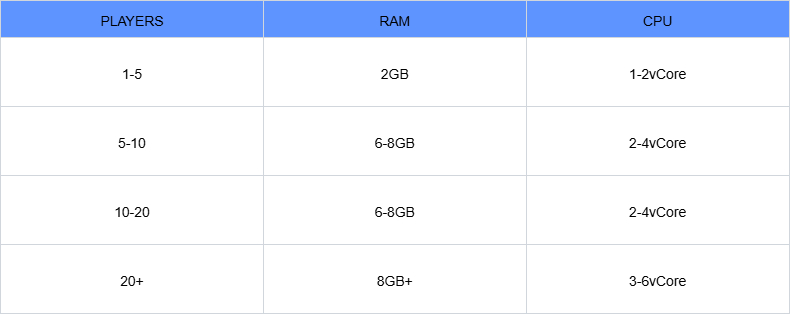
- Forge: 6GB+
- Fabric: 4GB+
- Modpacks: Follow pack recommendations
Modded servers use significantly more resources.
Bedrock servers
- 2–6GB RAM is usually enough
- More CPU is important for higher player counts
Paper / Purpur / etc.
- At least 4GB RAM
- 2+ vCores recommended
Chunk loading, farms, and entities heavily impact performance.
CPU Matters More Than Cores
When choosing a host, CPU speed matters more than core count.
Example:
- Xeon E5-2680 v4 → 14 cores
- Ryzen 7 5800X → 8 cores
Even with fewer cores, the Ryzen CPU performs much better because of higher single-core performance, which is critical for Minecraft.

Always choose:
- Newer CPU architecture
- Higher clock speed
Also, always use SSD storage for faster chunk loading and better performance.
Download the Minecraft Server Jar
For local hosting, download the server jar:
Vanilla server:
https://www.minecraft.net/en-us/download/server
Other software:
- Paper: https://papermc.io/downloads/
- Forge: https://files.minecraftforge.net/net/minecraftforge/forge/
- Fabric: https://fabricmc.net/use/server/
Set Up the Server Files
- Create a new folder
- Place the server jar inside
- Rename it to server.jar

Create a file called start.bat and add:
java -Xms128M -Xmx6144M -jar server.jar nogui
pause
Explanation:
- Xms = minimum RAM
- Xmx = maximum RAM


Do not allocate more than ~50% of your system RAM.
Accept the EULA
On first startup, the server will stop.

- Open eula.txt
- Change eula=false to eula=true
- Save and restart
Configure server.properties
This file controls your server settings.
Examples:
- gamemode=survival
- max-players=20
- online-mode=true
Setting online-mode=false allows cracked players but reduces security.
Read our Protect Your Minecraft Server Guide to secure your server.
Port Forwarding Your Minecraft Server
Port forwarding is required for players outside your network.
- Default port: 25565
- Required for friends to join
Guide:
https://www.youtube.com/watch?v=MvNRNs6kHIc
If your ISP gives a dynamic IP, you may need a static IP or use a dynamic DNS service.
Hosting providers do not require port forwarding.
Install Plugins or Mods
- Paper → plugins only
- Forge/Fabric → mods only
You can use hybrid software (like Mohist), but it may cause issues.
Steps:
- Download plugins/mods from https://modrinth.com
- Place them in plugins or mods folder
- Restart server
Plugins generate files in the plugins folder
Mods generate config files in the config folder
Conclusion
Setting up a Minecraft server might seem complicated at first, but once you go through the process, it becomes much easier.
You can start with a simple local server for free and upgrade later as your needs grow. If you want better performance, no port forwarding, and an easier setup, using a hosting provider is usually the better option.