

The exact Java version for every Minecraft version, from Java 8 to Java 25 for 26.x, plus how to fix UnsupportedClassVersionError and check which Java you run.
A Minecraft Java server needs the right version of Java to start. Use one that is too old and the server crashes before it loads a single chunk. Use one that is too new on an old modpack and you can get strange errors too.
In this guide, we will cover exactly which Java version each Minecraft version needs, including the 26.x releases, what the "UnsupportedClassVersionError" message means and how to fix it, how to check which Java you have, and how to pick the right one on a host.
By the end of this guide, you will know which Java to install for your server and how to fix the most common Java error in a couple of minutes.
Java Version by Minecraft Version
This table uses the Java version Mojang sets for each release in its own launcher data, which matches the Minecraft Wiki (source: Minecraft Wiki):
| Minecraft version | Minimum Java | Notes |
|---|---|---|
| 1.12 to 1.16.5 | Java 8 | Older versions also use Java 8 in Mojang's launcher |
| 1.17 and 1.17.1 | Java 16 | Java 16 is no longer updated, Java 17 is the usual pick |
| 1.18 to 1.20.4 | Java 17 | Includes 1.20.1, a popular modding version |
| 1.20.5 to 1.21.11 | Java 21 | Includes 1.21.1, the other big modding version |
| 26.1 and newer | Java 25 | 26.1, 26.2, 26.3 and the 26.4 snapshots |
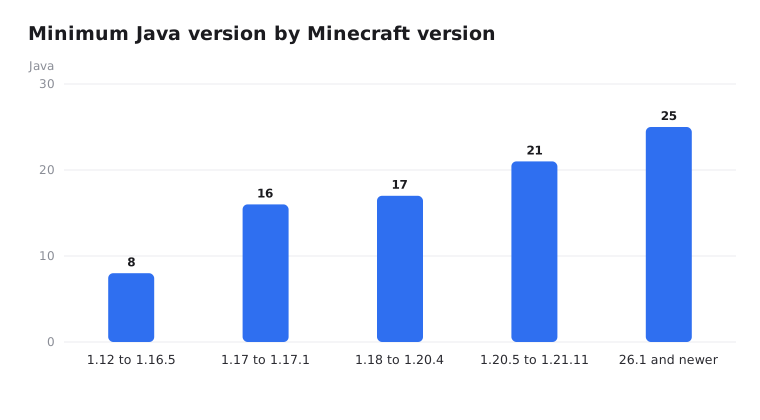
The change to watch is 26.1. It was the first release in Mojang's new year-based numbering, and it raised the minimum from Java 21 to Java 25. If you are updating from 1.21.x, you need a new Java as well as a new server jar.
Note: "Minecraft 26.1" does not mean "Java 26". The 26 is the year 2026. Minecraft 26.x needs Java 25. Java 26 was released in March 2026 as a short-term version, and Adoptium lists its support as already ended in September 2026. Java 25 is a long-term support (LTS) release, so it is the one to install.
Minimum vs Recommended
The table above shows the minimum. Server software sometimes recommends a newer Java for the same Minecraft version. PaperMC's own table recommends (source: PaperMC docs):
- Paper 1.17 to 1.19 → Java 17
- Paper 1.20 to 1.21.11 → Java 21
- Paper 26.1 and newer → Java 25
Some other tools you might run next to your server have their own rules:
- Velocity (the proxy) → Java 25 or newer. See our Velocity guide.
- Geyser Standalone → Java 21 or newer. The plugin version uses your server's Java. See our Geyser guide.
- PowerNukkitX (a Bedrock server) → Java 21 or newer.
The safest pick is usually the long-term support version that matches your Minecraft version from the table: 8, 17, 21 or 25.
When Newer Java Is a Problem
For modern versions, "Java 21 or newer" or "Java 25 or newer" means newer usually works. Older software is different:
- Old Forge modpacks, especially on 1.12.2, were built for Java 8 and often fail to start on newer Java. Most 1.16.5 packs expect Java 8 too. Stick to Java 8 for them unless the pack says otherwise.
- Old Paper builds check the Java version and refuse to start on one they do not support. For example, Paper 1.16.5 stops with an "Unsupported Java detected" message on Java 17.
So do not just install the newest Java for everything. Match the Java to the Minecraft version and the server software.
The "UnsupportedClassVersionError" Error
This is the error you get when your Java is too old. Here is what it looks like when you start a vanilla 26.x server with Java 21:
Error: LinkageError occurred while loading main class net.minecraft.bundler.Main
	java.lang.UnsupportedClassVersionError: net/minecraft/bundler/Main has been compiled by a more recent version of the Java Runtime (class file version 69.0), this version of the Java Runtime only recognizes class file versions up to 65.0
It looks scary, but it tells you exactly what is wrong. The two "class file version" numbers map to Java versions:
| Class file version | Java version |
|---|---|
| 52.0 | Java 8 |
| 60.0 | Java 16 |
| 61.0 | Java 17 |
| 65.0 | Java 21 |
| 69.0 | Java 25 |
So the message above says: "this file needs Java 25 (69.0), but you are running Java 21 (65.0)". A quick trick: subtract 44 from the class file version to get the Java version.
How to fix it
- The server jar is too new for your Java → install the Java version from the table and start the server with it.
- A plugin or mod gives the error (the class name in the message belongs to the plugin, not Minecraft) → the plugin was built for a newer Java than you run. Update Java, or download the plugin version made for your Minecraft version.
- You installed the right Java but still get the error → your start script is using another Java install. See the next section.
How to Check Your Java Version
Open a terminal (Command Prompt on Windows) and run:
java -versionExample output from a Windows PC:
java version "24.0.2" 2025-07-15
Java(TM) SE Runtime Environment (build 24.0.2+12-54)
Java HotSpot(TM) 64-Bit Server VM (build 24.0.2+12-54, mixed mode, sharing)
The first line is the one that matters. This PC has Java 24, which is fine for 1.20.5 to 1.21.11 but too old for Minecraft 26.x.
Many PCs have more than one Java installed. On Windows, this shows every java.exe on your PATH, in the order Windows uses them:
where javaThe first result is the one java runs. If it is the wrong one, use the full path in your start.bat instead of just java:
"C:\Program Files\Eclipse Adoptium\jdk-25.x.x-hotspot\bin\java.exe" -Xms1G -Xmx4G -jar server.jar nogui
pause
Your folder name will include the exact version, so copy it from File Explorer. On Debian or Ubuntu, sudo update-alternatives --config java lets you switch the default Java.
Where to Get Java
Use a free OpenJDK build. PaperMC's install guide recommends Amazon Corretto, and also lists Eclipse Adoptium (Temurin), Microsoft and Azul Zulu (source: PaperMC Java install guide). Any of them works for a Minecraft server.
- adoptium.net → Eclipse Temurin
- aws.amazon.com/corretto → Amazon Corretto
Pick the version from the table, your operating system, and the JDK installer. On Windows, the installer can add Java to your PATH for you.
Choosing Java on a Host
On a hosting panel you do not install Java yourself. Your server runs in a container image that already has a Java version inside.
On EternalZero, open the Startup page and pick the Docker image with the Java version your Minecraft version needs, then restart the server. If you switch versions with the Versions Changer, for example from 1.21.1 to 26.3, check the Startup page afterwards so the Java version matches.
Example:
- Forge 1.20.1 modpack → Java 17 image
- NeoForge 1.21.1 modpack → Java 21 image
- Paper 26.3 → Java 25 image
If the console shows "UnsupportedClassVersionError" right after a version change, the Java image is the first thing to check. Read Should Your Server Run the Latest Minecraft Release? before a big version jump, and our mods and modpacks guide if you run a pack.
Conclusion
Matching Java to Minecraft is simple once you know the table: Java 8 up to 1.16.5, Java 16 for 1.17, Java 17 up to 1.20.4, Java 21 up to 1.21.11, and Java 25 for 26.1 and newer.
If your server will not start, read the first error line. "UnsupportedClassVersionError" almost always means the Java is too old, and the class file numbers tell you which version you need. Install the long-term support version that matches, point your start script or panel at it, and start again. If you are setting up a server from scratch, our How to Make a Minecraft Server guide walks through the rest.